
Accounts show where Budgetezy expects cash to sit. A transfer can move money from one account to another without creating new household income or ordinary spending. For example, moving $300 from Everyday to Savings lowers one account's projected balance and raises the other's, while leaving the combined amount unchanged.
That is why transfers remain part of the plan but are left out of Dashboard totals that describe income and ordinary expenses.
Accounts give money a location
An account has an opening cash balance and the date that balance applies from. Budgetezy uses that starting point with the income, expenses and transfers assigned to the account to calculate its projected balance over time.
The account is part of each item's context, not just a label on an amount. A transfer needs two accounts so Budgetezy can track where the money leaves and where it arrives.
A transfer has two sides
A transfer records:
- From Account;
- To Account;
- amount; and
- date or schedule.
The two accounts must be different. The transfer form labels them From Account and To Account.
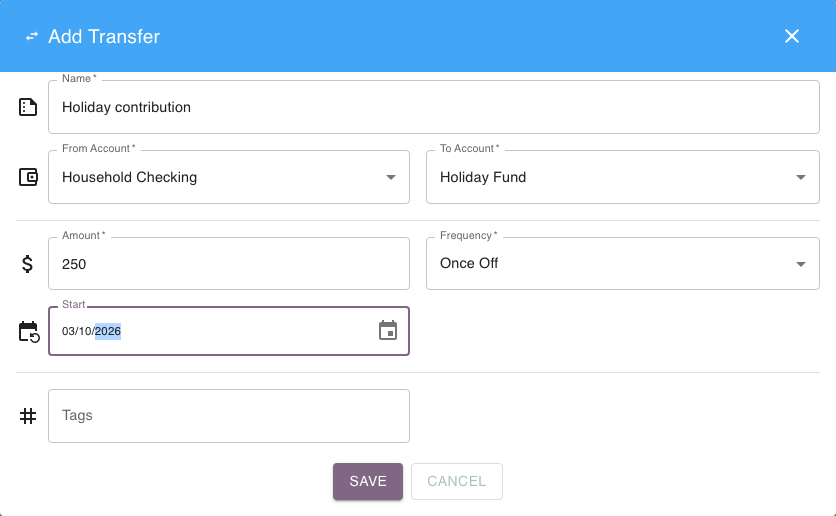
That tells Budgetezy the money changed location inside the represented accounts.
Why ordinary totals exclude transfers
| Account or total | Before | Transfer | After |
|---|---|---|---|
| Everyday | $1,000 | −$300 | $700 |
| Savings | $2,000 | +$300 | $2,300 |
| Combined accounts | $3,000 | $0 | $3,000 |
The transfer changes each account's balance, but the combined amount stays $3,000. It is not another $300 of household income or ordinary spending.
Where transfers are excluded
The Dashboard excludes transfers from ordinary expense totals and category rankings. In the Next 30 days card, transfers are left out of Coming in, Going out, Net and the short event list.
In Detailed breakdown, transfers appear in their own group. A large internal transfer can therefore be inspected without making the household's ordinary spending breakdown appear higher.
Transfers still belong in the plan
Excluding a transfer from ordinary income/expense totals does not remove it from the plan. It remains visible on the Calendar and in Manage Budget → Transfers, with its source and destination accounts. You can also record what happened against a scheduled transfer. For example, if $300 was planned but $320 moved a day later, the actual amount and date stay attached to that transfer occurrence.
See Organise your budget with accounts and transfers for the task-oriented workflow.