
Budgetezy accounts do not have to mirror your bank accounts one-for-one. Budgetezy Premium includes unlimited accounts and sinking funds, so you can use accounts as planning buckets such as Bills, Holiday, Car, Christmas or Emergency Fund without opening another real bank account for every purpose.
For example, you can keep a Bills bucket inside Budgetezy even if all the real money remains in one bank account. Planned expenses and transfers show how your budget is organised across those buckets; creating a Budgetezy account does not move money at your bank.
Transfers move money between Budgetezy accounts without making the movement look like new household income or ordinary spending.
Create an account
Open Budget on a larger screen, or use three-dot menu → Manage Budget on a smaller screen.
The Accounts section is near the top. Select the plus button (Add account), then enter:
- Name;
- Opening Cash Balance; and
- Opening Balance Effective Date.
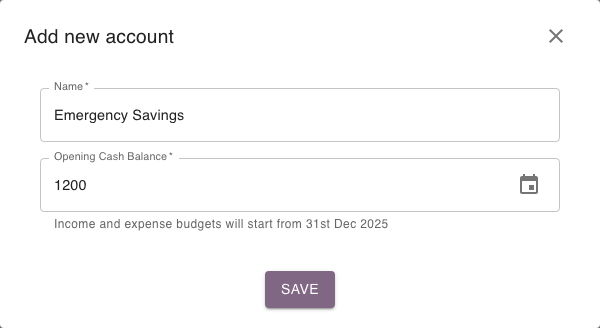
Together, these fields describe how much cash the Budgetezy account has on the date you set. For example, if Emergency Savings starts with $1,200 on 31 December 2025, enter that balance and date; planned income and expenses are projected from that point. This sets up the Budgetezy forecast and does not transfer money at your bank.
If you have a Budget Partner and the account is an eligible household account, the form can also show Shared Account.
Choose Save when the account is ready.
You can also create an account while adding income, an expense or some other account-linked items: open the relevant account field and choose + Add New Account.
Connect planned income and expenses to the right account
When you add or edit income or an expense, choose the account where you expect the money to arrive or leave.
For example:
- salary might arrive in Everyday;
- a power bill might leave Everyday; and
- an internal move from Everyday to Savings is a Transfer.
This tells the plan which Budgetezy account the income arrives in or the expense leaves from. A transfer instead names both the source and destination accounts.
Add a transfer when the money stays inside your accounts
Open Manage Budget or Calendar and use the floating Add Budget control.
Choose Transfer, then enter:
- the transfer name and amount;
- From Account;
- To Account; and
- the date or repeating schedule.
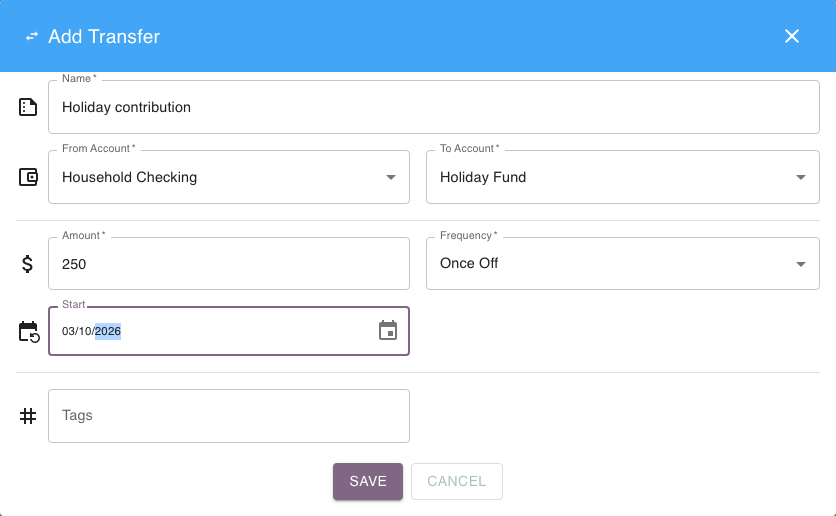
The source and destination must be different accounts.
For example, you might plan $250 from Everyday to Savings every fortnight.
Budgetezy keeps that as one internal movement. It is not also counted as $250 of household income or $250 of ordinary spending.
Check the transfer on the Calendar
After saving, open Calendar to see when the transfer is planned.
If the transfer happens on a different date or for a different amount, find it in Calendar's date-by-date list and select its amount to open the actual fields. On a phone, you can also swipe the row left. Enter the real date and amount, then select the checkmark icon (Save Actual). See Record what actually happened.
If the future transfer plan itself changes, edit the saved transfer instead. See Change something you've already planned.
See Planned vs recorded amounts.
Why transfers are kept separate from ordinary totals
Transfers still change individual account balances, but moving money between your own accounts does not create or consume household money overall.
That is why Dashboard incoming, outgoing and spending totals treat them differently from normal income and expenses.