
Household money is often partly shared and partly personal. You might both contribute to bills and savings while still keeping individual spending accounts private.
Budget Partner is designed for that split. You invite one partner, then choose which eligible household accounts are shared. Budget items attached to a shared account can be managed together; other accounts remain individual.
There is no separate “partner budget” to maintain. The shared account is the boundary that tells Budgetezy which part of the household plan belongs to both of you.
For example, you might share a Household Bills account for shared income and expenses, while leaving each person's Everyday account individual. Sharing an account changes who can manage its Budgetezy plan; it does not connect to or move money at a bank.
Invite your Budget Partner
Open the three-dot menu and choose User Profile.
Find the Budget Partner section.
If you do not already have a partner or pending invitation:
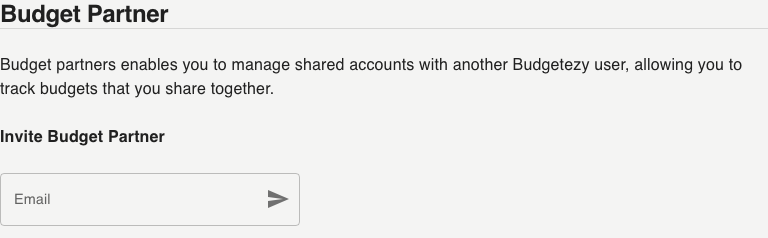
- enter the other Budgetezy user's email in Email;
- select the send icon in the Email field;
- ask them to open the invitation email; and
- they choose Accept Invitation on the Budget Partner Invitation page.
Budgetezy supports one Budget Partner at a time.
While an invitation is pending, the section says it has been sent and offers Revoke invite if you no longer want to establish the partnership.
Choose which accounts are shared
After the partnership is active, open Budget on a larger screen, or use the three-dot menu → Manage Budget on a smaller screen.
Open an existing household account or add a new one.
Eligible household account forms show Shared Account. Turn it on for an account you want both partners to manage.
The sharing boundary is the account. Income and expenses attached to shared accounts can then be managed in that shared household context, while accounts you have not marked as shared remain individual.
Build the shared part of the plan
Use the normal Manage Budget workflows for the shared account:
- add or edit income that arrives into it;
- add or edit expenses that leave it; and
- use transfers when money moves between Budgetezy accounts.
You do not need a separate “partner budget” screen. The shared account is what connects the relevant budget records.
See Organise your budget with accounts and transfers.
Stop a partnership
Return to User Profile → Budget Partner and choose Stop budget partnership.
Read the confirmation carefully: stopping the partnership permanently deletes the shared accounts and their budgets. Re-establishing a partnership later does not restore them; you would need to create the shared accounts and budget again.