
A budget becomes harder to scan as you add recurring bills, one-off purchases, multiple accounts and transfers. Manage Budget brings the saved parts together so you can find the item you meant to change without confusing it with a single Calendar occurrence.
Use Manage Budget to review or change a saved plan. Use Calendar to follow what is planned for a particular date or record what actually happened.
Open Manage Budget
On a larger screen, select the Budget tab in the main navigation.
If that tab is not visible, open the three-dot menu and choose Manage Budget.
The page brings these sections together:
- Accounts;
- Budget Goals;
- Assets;
- Liabilities;
- Income;
- Expenses; and
- Transfers.
Find an income, expense or transfer
Scroll to Income, Expenses or Transfers. Items are grouped by category; each card shows the name, frequency, dates and amount. Select the card to review or edit the saved plan.
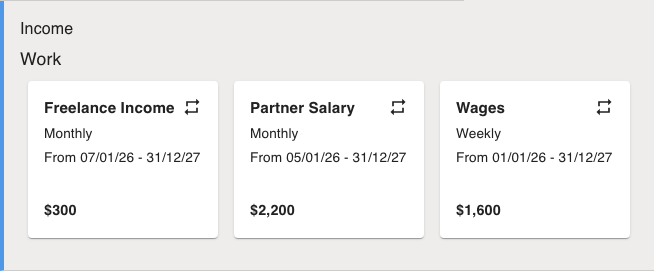
If the list is long, use Filter tags near the top to focus the income, expense and transfer lists on items with selected tags.
For example, if next month's bill amount changes, edit the saved card in Expenses. If this month's bill has already been paid for a different amount, keep the plan and record the result on Calendar. See Change something you've already planned.
Hide one-off items without deleting them
To scan recurring commitments, switch off Include Once Off. This hides one-time income, expenses and transfers from their lists. Turn it back on whenever you need to find a one-time item. Both this switch and Filter tags change the view only; nothing is changed or deleted.
Find and manage Budget Goals
The Budget Goals section is near the top of Manage Budget.
Active Goals are shown first. If you have completed or archived Goals, open the Completed Goals or Archived goals sections to find them.
Select a Goal to open its details and available management actions.
For the full workflow, see Find and manage your Budget Goals.
Add something new
Use the floating Add Budget control, then choose Income, Expense or Transfer.
You can also add income or expenses from the Calendar, where choosing a date first can prefill the date in the add flow.
If you are adding income or an expense and want to see the effect before saving, see Preview a budget change before you save it.