
Budget Goals keep a target connected to the part of your budget that explains it. A Goal can follow an account balance, a debt and its payment plan, one planned income, a contribution target, or a project's planned income and spending. Open the Goal again whenever you want to compare its plan with what has happened.
Find Budget Goals
On a larger screen, open Budget in the main navigation. On a smaller screen, open the three-dot menu and choose Manage Budget. Budget Goals appears near the top of the page.
Budget Goals are a Premium feature. If you are using the Free plan, choosing Add goal opens an upgrade prompt.
Add a Goal
In Budget Goals, choose Add goal. In the chooser titled What would you like your money to do?, pick the type that matches what you want to follow, then enter its details.
You can also start from Dashboard → Add → Budget Goal. If you are unsure which type fits, see Understand the five types of Budget Goal.
After you create a Goal, its details open so you can review its progress and, where relevant, its planned transfers or payments.
Return to a Goal and update its plan
Choose a Goal card under Budget Goals to open its details. The figures and actions depend on the Goal type: for example, a debt Goal shows an estimated payoff, while a project Goal groups planned income and expenses.
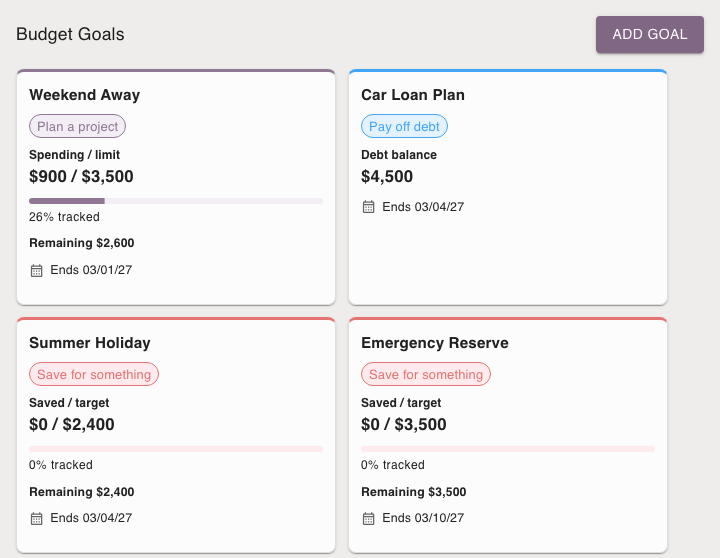
Use the edit action in the details to change the Goal's settings. If the Goal creates transfers or payments, review changes through that Goal so its plan and scheduled items stay aligned.
When a scheduled transfer or payment happens, open the Goal's Scheduled and recorded transactions list and choose Record Actual on its row. That keeps the planned amount available for comparison instead of replacing it with what happened.
Find a completed or archived Goal
Completed Goals and archived Goals are kept below the active Goals. If either group has Goals, expand Completed Goals or Archived goals to find its cards, then choose a card to reopen its details.
Completing or archiving a Goal clears it from the active group while keeping its history available. Choose the action that matches whether the plan is finished or simply no longer active.
Continue with the Goal that matches your task
See Plan a Project to keep an event's items together, or Plan a purchase or milestone with a Spending Target to review a contribution schedule.