
A holiday, renovation or other event can involve deposits, purchases and possible costs. A Plan a project Goal keeps those items together against the limits you set, while its active income and expenses still participate in the wider Calendar and Dashboard forecast.
For example, Weekend Away can group a cabin booking with other trip expenses. The Goal shows how much of the trip's spending limit is allocated, and drafts let you test an optional cost before it joins the active plan.
Create the project Goal
Open Budget → Budget Goals on a larger screen, or three-dot menu → Manage Budget → Budget Goals on a smaller screen.
Choose Add goal, then choose Plan a project.
Enter:
- Project name;
- Project starts;
- Project ends;
- Planned spending; and
- Planned income (optional), if the project will bring money in.
For a new project, planned spending must be greater than zero. Planned income is optional and, when entered, must also be greater than zero.
Choose Review plan to check the project details and limits, then choose Create goal.
Add income or spending to the project
Open the saved project from Manage Budget → Budget Goals.
Inside the Goal:
- choose Add income under Income; or
- choose Add expense under Spending.
Save the item normally when you want it to become an active part of the budget.
Active project items are still normal planned income or expenses. They can participate in the wider Calendar and Dashboard forecast as well as being grouped under the project Goal.
Compare planned items with the project limits
The Goal adds up active planned expenses against Planned spending and active planned income against Planned income, when you set one. Those two limits are shown separately. This is planned allocation, not a record of money already spent or received.
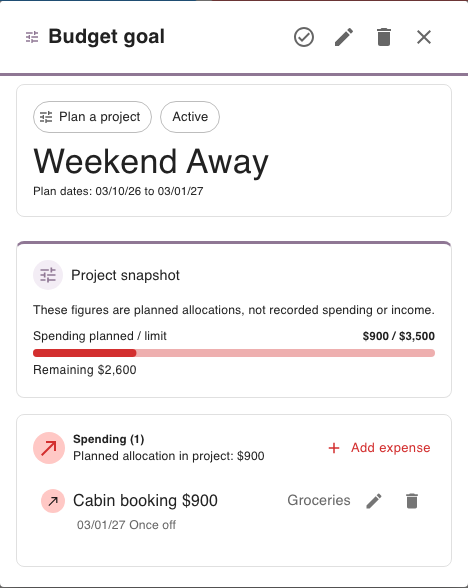
In this example, Weekend Away has a $900 planned Cabin booking against a $3,500 spending limit, leaving $2,600 for other planned expenses.
Keep an uncertain item as a draft
When adding project income or spending, choose Save as Draft if you want to keep the idea with the project without adding it to the active plan yet.
A draft stays attached to the project, but while it remains a draft it is excluded from:
- the project's planned-allocation progress; and
- the normal Calendar and Dashboard projection.
To temporarily see selected drafts in Calendar or Dashboard, open Filters → Show draft budgets and choose the items you want to include.
That filter changes the projection you are viewing. It does not turn the draft into an active project allocation.
See Try project budget items without adding them to the active forecast.
Record what actually happened
A project showing allocated expenses does not mean that money has already been paid. When a planned project transaction happens, use the Calendar's Record Actual workflow to keep the planned and recorded amounts distinct.
See Planned vs recorded amounts.
Plan a project does not generate a contribution schedule
This Goal groups project items and compares them with project limits. It does not create its own transfer or payment schedule. If you also want to track transfers toward an account balance or purchase target, use a separate Grow your balance or Spending Target Goal.