
A purchase with a known cost is easier to follow when the target, the account holding the money and the transfer plan live together. A Spending Target can show what has already been set aside, what is scheduled for the future and whether the plan is on track for its date.
For example, a $2,400 target with $400 already set aside leaves $2,000 for the transfer plan to cover. A fixed $500 contribution over four scheduled dates would cover that gap; the preview lets you check the dates and amounts before you create the Goal.
Create a Spending Target
Open Budget → Budget Goals on a larger screen, or three-dot menu → Manage Budget → Budget Goals on a smaller screen. Choose Add goal, then Save for something.
In Goal, enter:
- Goal name;
- Target amount;
- Already set aside; and
- Target date.
The Already set aside amount cannot be negative or greater than the target.
Choose the accounts and timing
In Transfer plan, choose:
- Start transfers on and the transfer frequency;
- Money comes from, the account Budgetezy will use as the source; and
- Goal money goes to, the account where the target is accumulating.
The source and destination must be different accounts. If the account you need is not listed, choose + Add New Account in the account selector.
Choose how the transfer amount is planned
Under How should transfers be calculated?, choose one option:
- Use the same amount each time to enter one amount for each scheduled period; or
- Use a percentage of projected budget surplus to set a share of positive projected surplus.
With projected surplus, the proposed amount can vary as your other planned income, expenses and transfers change. Budgetezy accounts for existing transfers from the source account and may reduce or skip a proposed transfer when that account is forecast to have insufficient funds or the target would otherwise be exceeded.
Review the schedule, then create the Goal
Choose Review plan and inspect the preview. It can show that the schedule reaches the target, leaves an amount remaining, has no transfers available or has already reached the target. When Confirm plan appears, choose it to confirm the reviewed schedule; then choose Create goal.
If the preview leaves a gap or shows no transfers, check the target and date, account choices and funding method. The schedule represents planned transfers in Budgetezy; it does not move money between your real accounts.
Follow the Goal and record transfers
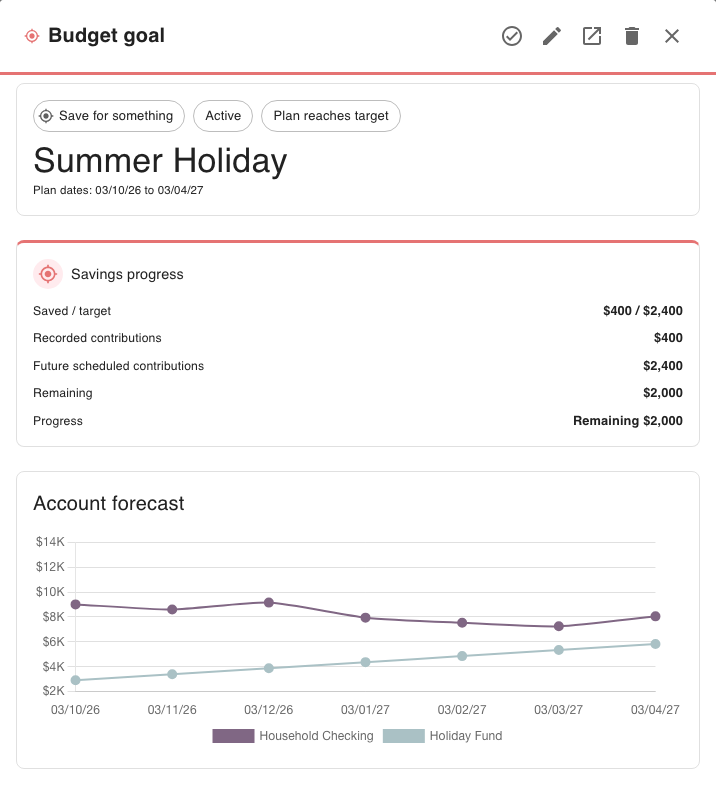
Open the Spending Target from Manage Budget → Budget Goals. Its detail view separates Recorded contributions from Future scheduled contributions. It can also show what remains and the individual scheduled or recorded transactions.
Saved / target includes the Already set aside amount you entered at setup plus contributions recorded since then. Remaining subtracts that saved total from the target; future scheduled transfers do not count as saved yet.
In this example, Remaining is $2,000: the $2,400 target less the $400 recorded. The $2,400 in Future scheduled contributions is separate planned money, not money already set aside. A schedule can exceed the remaining amount; Plan reaches target means its scheduled total meets or exceeds that amount.
When a planned transfer happens, choose Record Actual on its row and enter the amount that actually moved. If the actual is different from the plan, the recorded amount preserves what happened without changing the original scheduled amount.
When you materially change the Goal's dates, accounts or contribution method, review the recalculated schedule and confirm it before saving. See Budget Goal calculation and progress terminology for what the progress figures mean.