
Project plans often include possibilities: an optional room upgrade, an estimate that has not been accepted or income that is not confirmed. A draft keeps one of those items attached to its project without adding it to the active project allocation or the normal Calendar and Dashboard projection.
When you want to test a possibility, Show draft budgets lets you include selected drafts in a Calendar or Dashboard view. This changes the projection you are looking at; the item stays a draft.
Save a project item as a draft
Open Budget → Budget Goals on a larger screen, or three-dot menu → Manage Budget → Budget Goals on a smaller screen. Open the relevant Plan a project Goal.
Then:
- choose Add income under Income or Add expense under Spending;
- fill in the proposed item; and
- choose Save as Draft.
The draft stays connected to the project. While it remains a draft, it is excluded from the active project allocation and normal Calendar and Dashboard projection.
Include selected drafts on Calendar
Open Calendar. On a larger screen, open the Filters panel; on a phone, tap the filter icon. Under Show draft budgets, choose one or more drafts to include.
In the example, Optional room upgrade is selected and appears as a planned expense on the Calendar.
If several events share a day, choose +N more in that day’s calendar cell to open the full day-event list and find the draft.
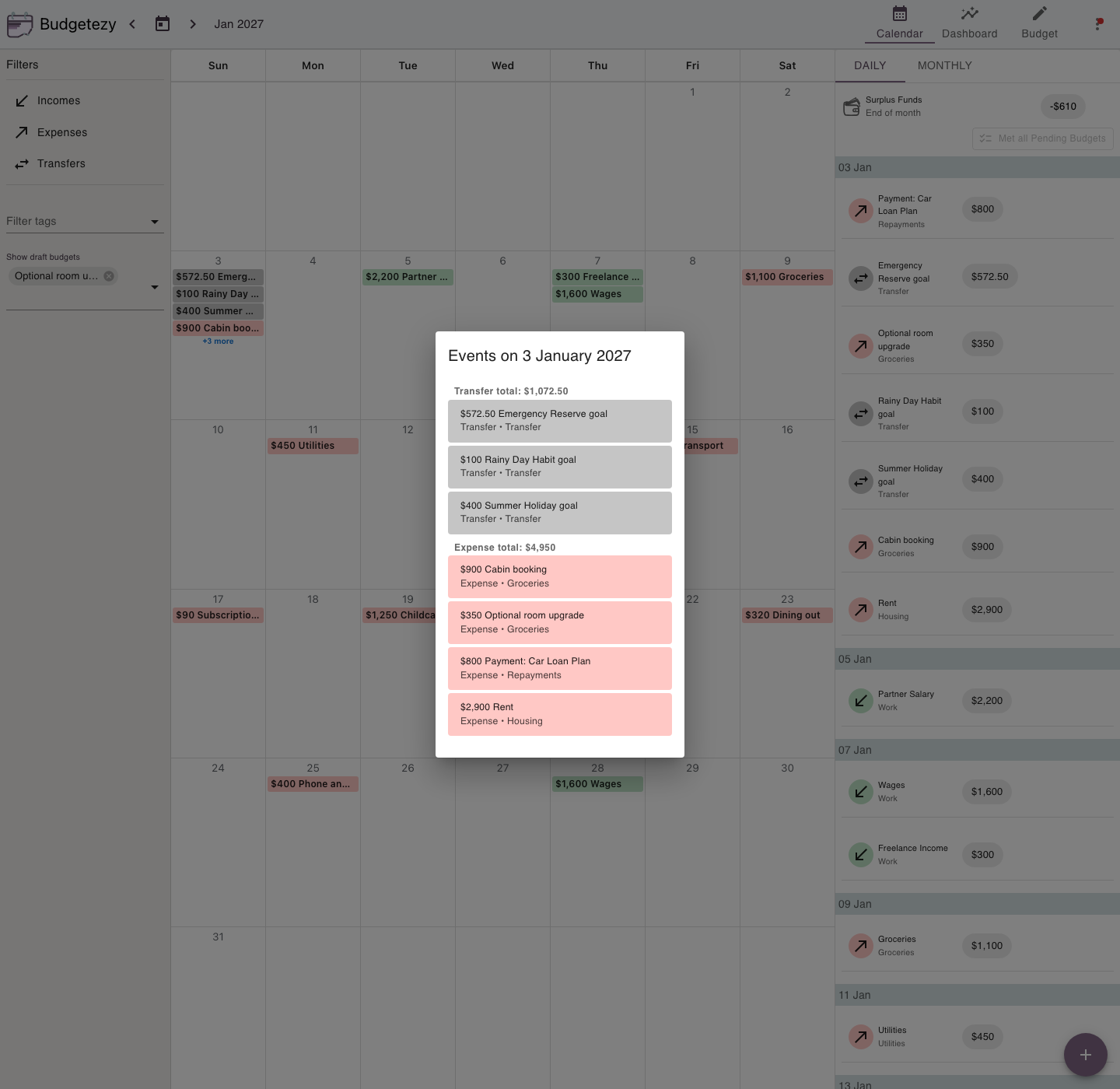
Remove the selected draft from Show draft budgets to return to the usual view. The saved item remains attached to its project.
Include selected drafts on Dashboard
Open Dashboard → Filters. On a phone, tap the filter icon to open Filters. Choose the drafts in Show draft budgets to include them in the yearly summary and projection.
For example, you can compare the year with and without the room upgrade selected without adding it to the active project plan.
Showing a draft does not activate it
Show draft budgets is a view filter.
Selecting a draft there:
- does not create another copy;
- does not remove its draft status; and
- does not make it count toward the project's active allocation progress.
Remove the draft from the filter and it remains saved in the project for later.
Return to Manage Budget → Budget Goals → your project to edit a draft. When you are ready to include it in the active project plan, save it as a regular item instead of choosing Save as Draft.
Use Preview or What If for different questions
Use the tool that matches what you want to keep or test:
- use a draft to keep a possible project item and revisit it later;
- use Preview while entering one new ordinary income or expense to check its impact before saving; or
- use What If for a broader temporary scenario involving one or more changes.
See Keep planned income and expenses for an event or project together to add or manage project items, or Preview a budget change before you save it for the ordinary add flow.