
Use Calendar to see planned income, expenses and transfers by month and day, check what is due, or record what happened against an item. It places them on a timeline so you can inspect their timing around a payday, bill or other commitment.
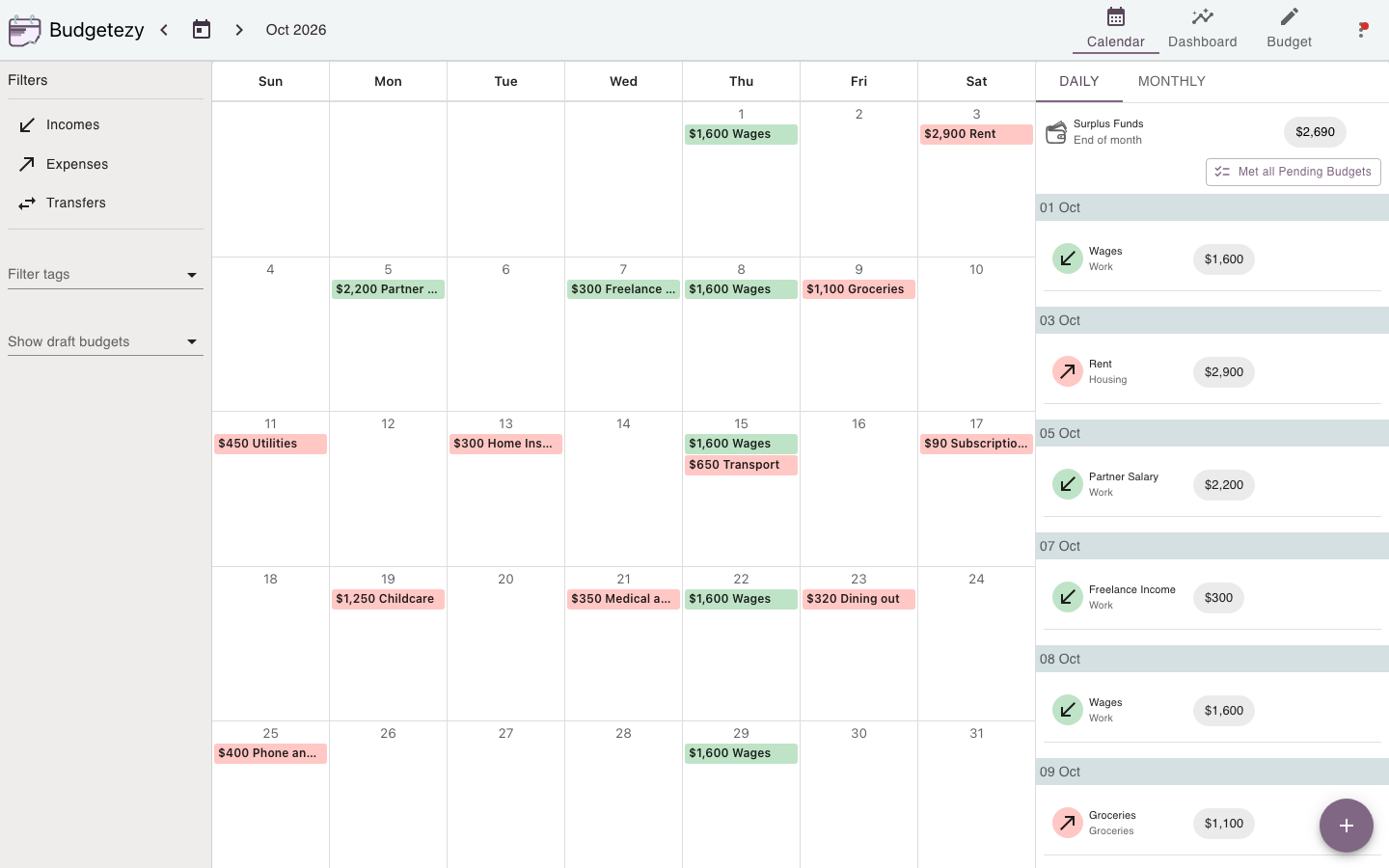
Open Calendar and move between months
Choose Calendar in the main navigation or from the three-dot menu.
On a larger screen, use the previous and next arrows to move through months and Today to return to the current month.
On a phone, swipe left across the month grid to move forward and right to move back. To jump further, tap the month and year at the top, choose a year, then choose a month. Choose Today in that picker to return to the current month.
Changing the view does not change a saved budget item.
Use Filters when the month is too busy
On larger screens, use Filters beside the calendar. On a phone, tap the filter icon in the app bar to open the panel.
Choose Incomes, Expenses or Transfers to focus the month on that type; then narrow further by category or tag. Show draft budgets lets you add selected draft items to the Calendar view temporarily. These filters change what you see, not what is saved.
See Try project budget items without adding them to the active forecast for how drafts behave.
When a day is crowded, choose +N more in its month cell to open the full event list for that date. Events are grouped by type, with a total shown when there is more than one of that type. Select an event in the list to open its saved plan.
Start a budget item from a date
Select a day in the month grid to start adding an item with that date prefilled. Choose Income, Expense or Transfer from the add flow. You can also open the floating Add Budget control first when you do not need to start from a particular date.
Open an event when you need to act on it
The date-by-date agenda sits beside the month grid on a larger screen, or below it on a phone. Select an item name to edit its saved income, expense or transfer. To record an actual, select its amount in the agenda.
See Change something you've already planned for when to edit the plan or record an actual.
On desktop, drag an event onto the date it actually happened
On a desktop, drag a planned event in the month grid onto the date it actually happened. Budgetezy opens Record Actual with that date ready. Review Actual Date and Actual amount, then save. This records the actual; it does not move the saved recurring plan.
This shortcut is for desktop. On a phone, use the date-by-date list or swipe the row left. See Record what actually happened.
Recurring events still come from one saved schedule
A repeating income, expense or transfer can appear on many dates even though it is defined by one saved schedule. Recording one late or early actual does not automatically change the next planned occurrence.
See How recurring schedules appear in your budget.
Use Dashboard when the question is bigger than one month
Calendar is best for dates and individual events.
When your question is about the shape of the year, projected cash or category totals, switch to Dashboard. The same underlying plan is being summarised at a broader level. See Understand your Dashboard for how to read those summaries.