
When a bill or payment differs from its plan, record the real date and amount against that planned occurrence. Budgetezy keeps the original expectation beside the actual, so an unusual transaction does not silently rewrite the next occurrence in a repeating schedule.
Record an actual from Calendar
Open Calendar and find the item in the date-by-date list beside the month grid on a larger screen, or below it on a phone. Select its amount to open the inline actual fields; on a phone, swipe the row left to open them. If no actual is recorded yet, swiping right records the planned date and amount immediately. For an item with an actual, swiping right opens its actual fields for editing.
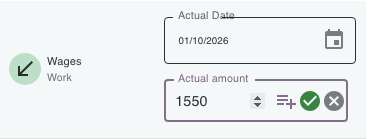
The item name opens the saved plan for editing; the amount area opens actual entry. In the actual fields, enter:
- Actual Date — the date it really happened;
- Actual amount — the amount that really occurred.
Select the checkmark icon (Save Actual) to save it. For example, freelance income planned at $900 on 14 October arrives as $875 on 16 October. Record $875 and 16 October against that occurrence; you do not need to add a second income entry.
Use desktop drag-and-drop as a shortcut
In the desktop month grid, drag the planned event onto the date it actually happened. Budgetezy opens Record Actual with the dropped date filled in. Check Actual Date and Actual amount, then save.
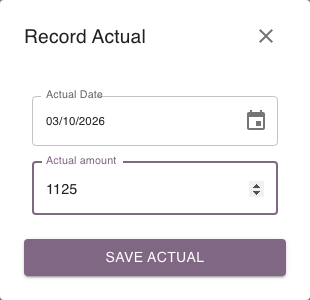
Dragging is a shortcut into actual entry. It does not move the saved recurrence. On a phone, use the date-by-date list instead.
Mark several pending items as met
If the visible Calendar items dated today or earlier all happened as planned, Met all Pending Budgets above the date-by-date list can record their planned dates and amounts as actuals together. Review the confirmation before applying it. You can still edit individual actuals afterward.
Correct an actual later
Find the same item in the date-by-date list and select its actual amount again. Edit the actual date or amount and save against that occurrence instead of creating a duplicate plan.
Change the plan only when the future expectation changed
If the transaction has not happened and your expectation changes, open Manage Budget and edit the saved item. If it has happened and reality differed, record or correct the actual here. See Change something you've already planned and Planned vs recorded amounts for the difference.