
There are two very different reasons a budget number can be “wrong”: your future expectation changed, or one real transaction happened differently from the expectation.
Budgetezy keeps those cases separate so one unusual payment does not accidentally rewrite the future. If your salary permanently changes, update the planned income. If one payday arrives a day late, record that occurrence as an actual and leave the repeating schedule alone.
Keeping the plan and reality side by side preserves both the forecast you made and what actually happened.
If the future plan changed, open Manage Budget
On a larger screen, choose Budget. On a smaller screen, open the three-dot menu and choose Manage Budget.
Find the income, expense or transfer you want and select its card.
Edit the saved details that genuinely changed, such as the planned amount, future dates, frequency or account, then save.
When you change Amount, use the calendar icon in the Amount field to set when the new amount starts. The Effective from text confirms the date. This keeps the earlier planned amounts available instead of applying the new amount to every past occurrence.
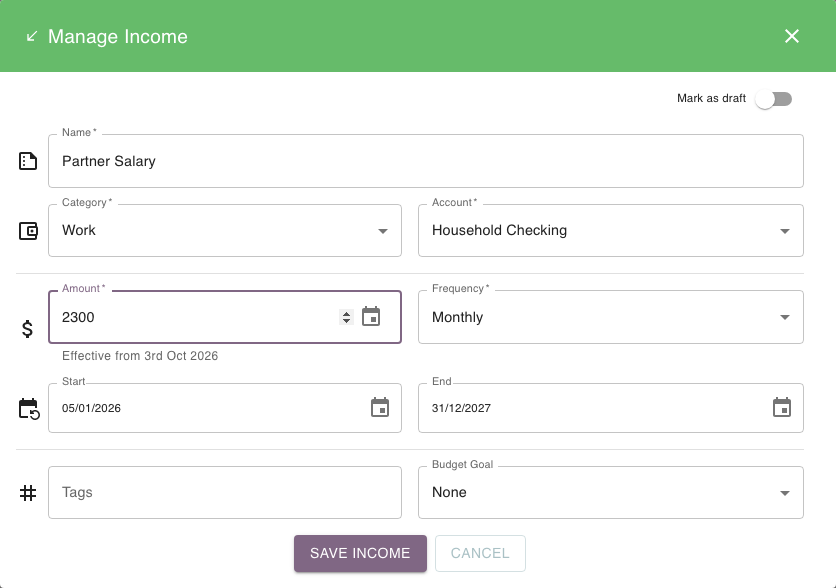
For example, a bill is still in the future and its due date moves from 15 October to 18 October. Change the plan to 18 October so future Calendar and projection data use the revised expectation.
If the transaction already happened, open Calendar
Suppose that same bill really was planned for 15 October at $120, but it was paid on 18 October for $128.
Open Calendar and find the bill in its date-by-date list. Select the bill's amount to open the actual fields; on a phone, you can also swipe the row left.
Enter:
- Actual Date — 18 October;
- Actual amount — $128.
Choose the checkmark icon (Save Actual) to attach the real amount and date to that planned occurrence.
You keep both what was expected and what happened.
Use this shortcut to choose the right workflow
| What changed? | Where to go |
|---|---|
| A future amount, date or schedule | Manage Budget → open the saved item |
| One transaction happened on another date | Calendar → dated list → amount → actual date |
| One transaction had a different amount | Calendar → dated list → amount → actual amount |
| A repeating arrangement changed going forward | Manage Budget → edit the underlying plan |
| The same plan was entered twice | Manage Budget → correct/remove the duplicate |
Repeating plans need extra care
One saved repeating item generates multiple future occurrences.
Changing its schedule can therefore affect future planned dates. Recording one unusual actual is occurrence-specific and does not automatically become the new recurrence rule.
See How recurring schedules appear in your budget.
Why some fields can become unavailable
After an actual has been recorded for an income or expense, its editor locks Start, Frequency and Account. The name, category and other available fields can still be reviewed there. Keeping the schedule and account attached to the recorded occurrence preserves the link between the original plan and what happened.
See Planned vs recorded amounts for the underlying distinction.