
When a change is still a possibility, check its effect before adding it to the saved budget. The add-form Preview compares one new income or ordinary expense with your current plan and leaves the form open so you can revise the proposal. What If is the workspace for comparing several changes or changing an existing item.
Preview one new income or expense from the add form
On Calendar or Manage Budget, select the Add Budget (+) button, then choose Income or Expense. You can also choose Add Income or Add Expense from an account's activity list. This preview is for one new income or ordinary expense; it is not available when editing an existing item or adding a transfer.
Fill in the item as if you were going to save it, including its amount, account, dates and frequency. The preview uses these values but does not save the item.
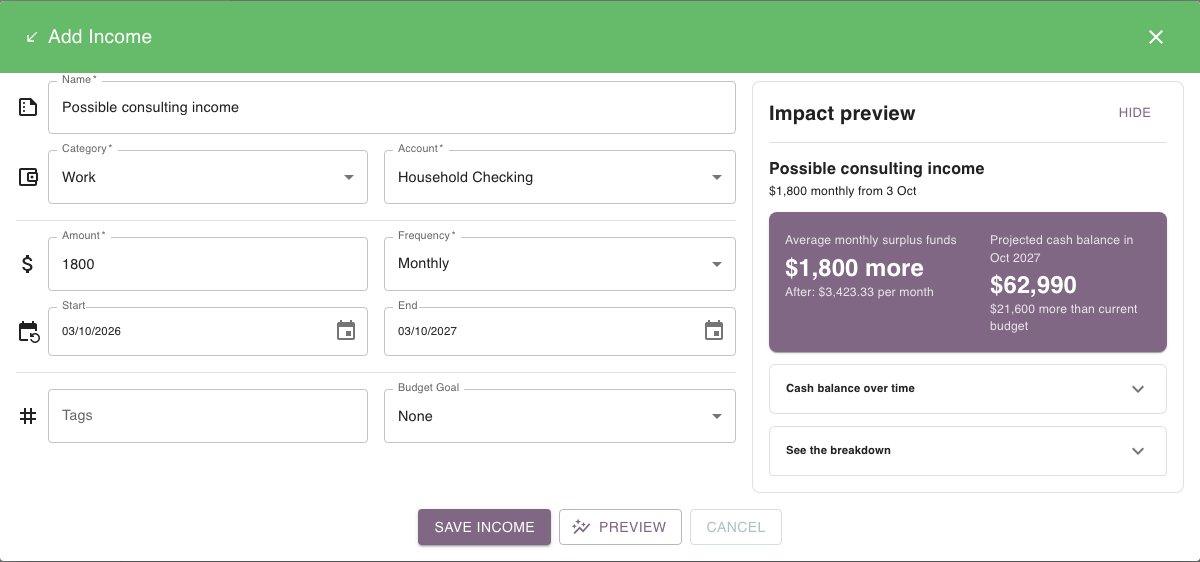
Choose Preview. The Impact preview appears beside or below the form depending on your screen size. It compares the current budget with the proposed item over the next 12 months and can show:
- the change to average monthly surplus funds;
- projected cash at the end of the preview period;
- the lowest projected cash amount and date; and
- warnings raised by the calculation.
Open Cash balance over time or See the breakdown to inspect the comparison and ending account balances.
You can keep editing the form while the preview is visible.
For example, the screenshot shows a possible $1,800 monthly consulting income. The form stays open while Budgetezy compares that unsaved proposal with the current plan.
Refresh the preview after changing the form
If you change any form field after the preview has been calculated, the result is marked out of date. Choose Update preview before using the figures to compare the revised item.
When you decide to add the item to your budget, choose Save income or Save expense. Saving is separate from previewing.
On a free account, choosing Preview opens the What If upgrade prompt instead of evaluating the proposal.
Use What If for a broader scenario
Choose What If on the Dashboard, or open Menu and choose What If.
Use this workspace when you want to combine or compare changes rather than preview a single new item. You can add a new income or expense, change or stop an existing income or expense, temporarily exclude forecast income occurrences or move one payment, or model a new Budget Goal. Combine changes to see their effect together.
Budgetezy compares the scenario with the current plan and shows the projected result, including a cash-balance timeline and ending account balances. For example, add a possible monthly bill and change an existing income in one scenario to see the combined difference.
Review before anything is applied
A What If result is still hypothetical.
When Review changes is available, select it to inspect the exact changes, then choose Apply changes to update the saved budget.
Temporarily skipping or moving one forecast income occurrence is for comparison only; What If explains when a scenario cannot be applied automatically. The underlying schedule remains unchanged.
Choose the shortest tool for the question
| Your question | Use |
|---|---|
| “What if I add this one income?” | Add Income → Preview |
| “What if I add this one expense?” | Add Expense → Preview |
| “What if several things changed together?” | What If |
| “I already know I want this in the live budget” | Save the normal Income/Expense form |
Use Understand your Budgetezy dashboard to read the projection you are comparing against, or Plan income and Plan expenses and bills to add a change you have decided to keep.