
When you plan income, the date matters as much as the amount. A recurring payday and a one-time payment belong in the budget differently.
Add a salary, benefit, rent payment or freelance income once, give it the right schedule, and Budgetezy can place future occurrences into the Calendar and projections automatically. A fortnightly salary does not need 26 separate entries, and a one-off payment does not need to be treated like a recurring income.
That gives the rest of the budget a more useful cash-flow picture before the money actually arrives.
Start a new income
On a larger screen, open Budget. On a smaller screen, open the three-dot menu and choose Manage Budget. Open the floating Add Budget control and choose Income.
You can also add income from the Calendar by using its add control. Starting from a date on the Calendar can prefill that date in the form.
Enter the plan you expect
Enter the income's:
- Name and Category;
- Amount and Account;
- Frequency; and
- Start, plus an optional End date for repeating income.
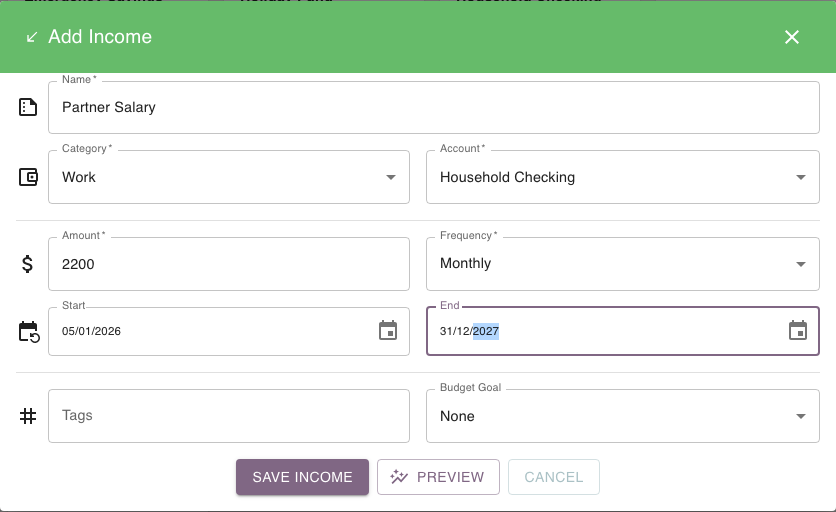
The account says where the money is expected to arrive. The schedule says when.
For example, a Salary of $2,400 every fortnight into Everyday, starting 2 October, repeats from one saved plan. A Project payment of $650 once into Everyday on 19 October appears only on that date.
Choose Once Off for a single payment; choose a repeating frequency when you expect the income to recur. Budgetezy creates future Calendar occurrences from that one saved schedule.
Preview before saving when you want to check the effect
On a supported new-income form, choose Preview to compare the projection with and without the income before saving. Preview does not add the income to your plan. It is a Premium feature; on a free plan, choosing it opens the upgrade prompt.
If you change the form after previewing, refresh the preview so it matches the latest amount, account and schedule.
When you are ready, Save income is a separate action.
See Preview a budget change before you save it.
Check it on the Calendar
After saving, open Calendar.
The planned occurrence appears on its scheduled date. A repeating income continues to appear from the one saved schedule, so you do not need to create every payday manually.
See How recurring schedules appear in your budget.
When the real payment is different
Suppose the $650 project payment was planned for 19 October but actually arrives on 21 October for $625. In Calendar's date-by-date list, select its amount to open the actual fields; on a phone, you can also swipe the row left. Enter $625 for 21 October, then select the checkmark icon (Save Actual).
That keeps both useful facts:
- what you expected; and
- what actually happened.
One unusual payment does not silently rewrite a repeating schedule.
See Record what actually happened.
When the future plan itself changes
If the expected amount, frequency, account or future dates genuinely change, open Manage Budget, find the income and edit the saved plan.
That is different from correcting one transaction that has already happened.