
Add an expense before it is due when you want to see it alongside income and other commitments. One saved schedule can cover a recurring bill; choose Once Off when the cost belongs to one date.
This keeps the forecast tied to the timing you expect. If a real bill later differs, you can record what happened and keep the original plan visible.
Start a new expense
On a larger screen, open Budget. On a smaller screen, open the three-dot menu and choose Manage Budget. Open the floating Add Budget control and choose Expense.
You can also add an expense from the Calendar. Starting from a Calendar date can prefill the date in the add form.
Enter the amount and timing
Enter the expense's:
- Name and Category;
- Amount and Account;
- Frequency; and
- Start, plus an optional End date for repeating expenses.
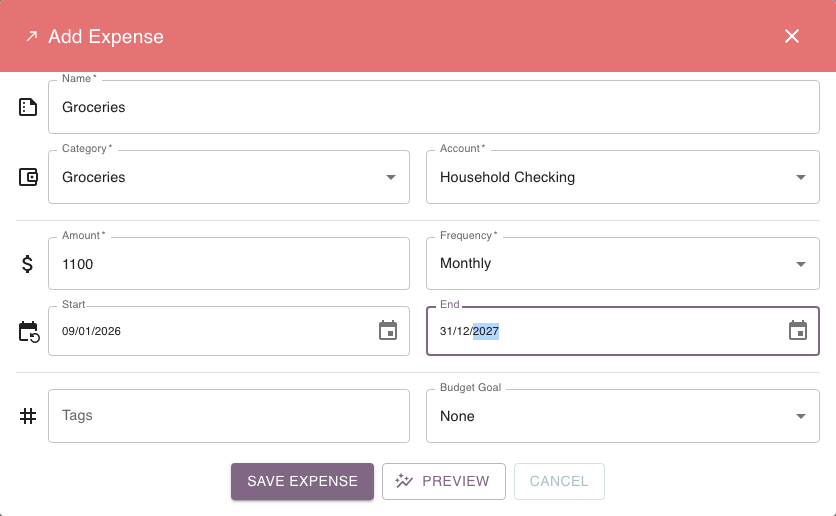
Choose a repeating frequency for a regular bill.
For example, a Phone bill planned at $65 monthly from 8 October produces future occurrences from one saved schedule.
Choose Once Off for something that belongs to one date, such as Registration renewal — $890 on 24 November.
Preview the effect before you save
On a supported new-expense form, select Preview to compare the projection with and without the expense before you save it. Preview does not add the expense to your plan. It is a Premium feature; on a free plan, selecting it opens the upgrade prompt.
If you change the form after previewing, refresh the preview so it reflects the latest amount, account and schedule. Choose Save expense when you want to add it to the plan.
See Preview a budget change before you save it.
Find the expense later
Open Manage Budget and scroll to Expenses to find and edit the saved item.
If you have many old one-off items, switch off Include Once Off to temporarily hide those cards while you look for repeating expenses.
See Find and manage the budget you've already built.
When the bill arrives differently
Imagine an electricity bill planned at $180 on 15 October. It is actually $194.20 on 17 October.
In Calendar's date-by-date list, select the bill's amount to open the actual fields. On a phone, you can also swipe the row left. Enter $194.20 for 17 October, then select the checkmark icon (Save Actual).
Do not rewrite the plan merely to make the historical transaction match. Change the saved expense only when the ongoing expectation has changed.
See Record what actually happened.
Use a transfer for money moving between your own accounts
If money is moving from one Budgetezy account to another, add a Transfer rather than an ordinary expense.
Transfers keep their From Account and To Account context and are treated differently from ordinary spending in several totals.