
Use Grow your balance when you want a Goal to follow an account itself, rather than saving toward one particular purchase. You can set a target balance and date, or keep an ongoing fixed-contribution plan without a target.
The details separate the account's current balance, its forecast balance and the Goal's own future transfer rows. The forecast looks ahead through your planned budget, while the transfer rows show this Goal's scheduled contributions.
Choose the account you want to grow
Open Budget → Budget Goals on a larger screen, or three-dot menu → Manage Budget → Budget Goals on a smaller screen. Choose Add goal, then Grow your balance.
Enter a Goal name and choose the account under Account balance to grow. This is the destination account whose balance the Goal follows.
Decide whether to track a target
Turn on Track a target balance if you want Budgetezy to compare the account's forecast with a specific balance by a date. Enter Balance you want to reach and Target date.
Leave target tracking off if you want an ongoing contribution plan. In that case, End transfers on — optional can stop the plan on a date; leave it blank for no planned end date.
Without a target, choose a fixed transfer amount. To use a percentage of projected budget surplus, turn on target tracking and set a target date.
Set the transfer plan
Choose Start transfers on, Money comes from, the transfer frequency and how transfers should be calculated. For a fixed plan, enter Amount to transfer each period. The account named in Money comes from must be different from the account named in Account balance to grow.
- Use the same amount each time schedules a fixed amount for each period.
- Use a percentage of projected budget surplus varies the proposed transfer with positive projected surplus. Existing transfers from the source account are included, and a transfer can be reduced or skipped if the source is forecast to have insufficient funds or the target would be exceeded.
Review and confirm a dated plan
If you set a target date or an end date, check the transfer preview before saving. With a target balance, the preview compares the destination account's forecast at the target date with your target and shows the transfers the Goal proposes. Choose Review plan; when Confirm plan appears, confirm the reviewed schedule before choosing Create goal.
If the forecast misses the target, review the balance and date, source account, transfer amount or surplus percentage, and frequency. You can change the plan and review it again before saving. If you leave target tracking off and do not set an end date, there is no finite date range to preview. After checking the transfer details, choose Create goal; the ongoing plan continues until you stop or complete the Goal.
Read the balances and contribution history
Open the saved Goal to compare its Current account balance with Forecast balance / target. In this example, Rainy Day Habit shows a current balance of $3,000, a $10,700 forecast against a $15,000 target and $1,300 in future scheduled contributions across thirteen $100 transfers. The forecast is the destination account's projected balance; the $1,300 is only this Goal's future transfer rows.
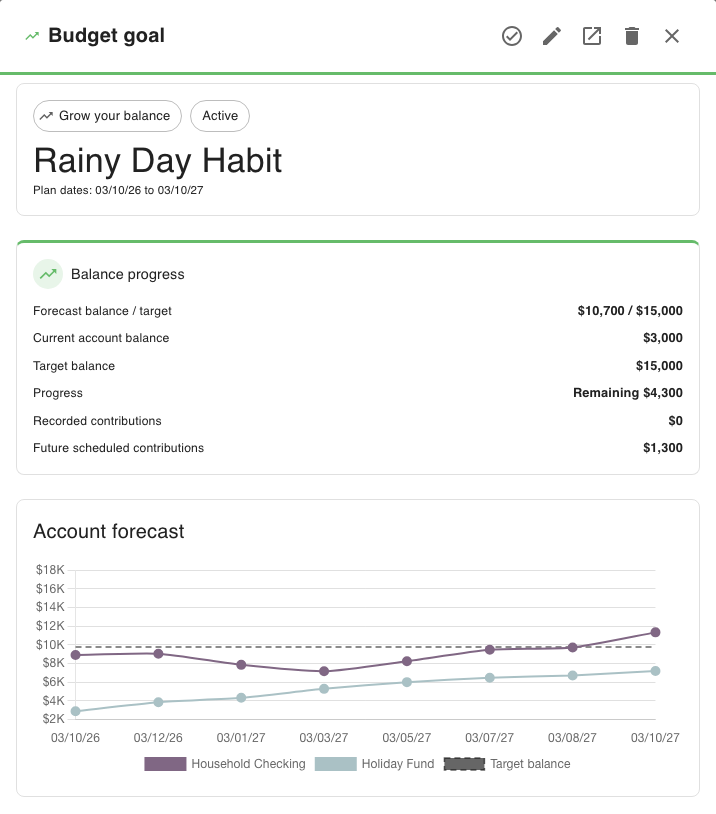
When a planned transfer happens, choose Record Actual on its row and enter the amount that moved. Budgetezy then keeps that recorded contribution separate from the transfers that are still planned.
See Budget Goal calculation and progress terminology for how the balance and contribution figures are calculated.