
Pay off debt keeps a liability's saved balance and interest rate beside the payment plan you enter. Its estimated payoff gives you a way to compare that plan with a date; the estimate uses your saved details and is not a lender quote or a guaranteed outcome.
Connect the debt
Open Budget → Budget Goals on a larger screen, or three-dot menu → Manage Budget → Budget Goals on a smaller screen. Choose Add goal, then Pay off debt.
Enter a Goal name and choose a liability under Debt to pay off. If the debt is not listed, choose + Create New Liability, then enter its Liability name, Debt amount, Balance date and Annual interest rate (%). The balance date records when that amount was accurate.
Enter the payment plan and comparison date
Choose the Payoff comparison date, then complete Payment plan:
- choose Payments come from;
- enter Amount each payment;
- choose the payment frequency; and
- choose Start payments on.
The estimated payoff uses the saved balance, interest rate, payment amount, frequency and dates. The comparison date lets you see whether the estimate falls before, on or after a date you entered.
Review the estimate
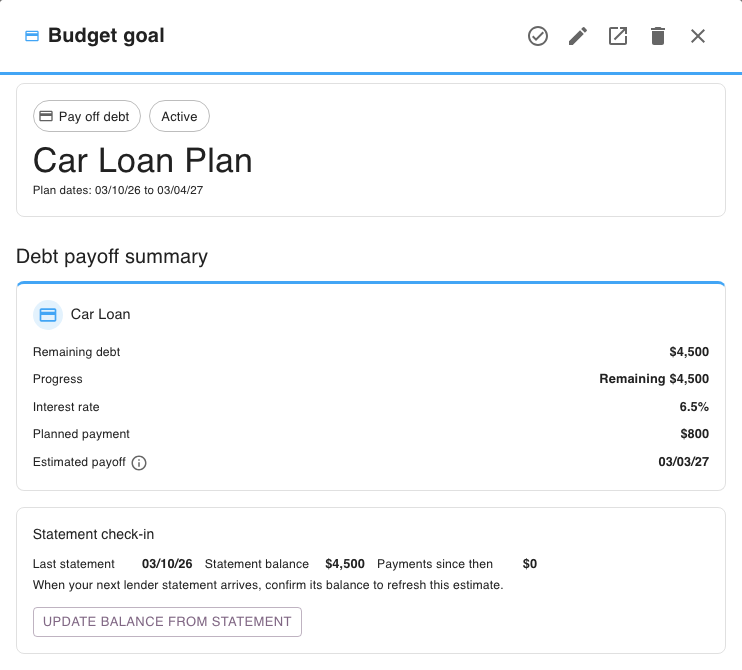
In the example below, Car Loan Plan shows $4,500 remaining at 6.5% interest, with an $800 planned payment. Its schedule shows the final planned payment separately from the earlier full payments.
When the required details are complete, choose Review plan, check the payoff estimate and choose Confirm plan. Then choose Create goal.
If a payment does not reduce the principal at the selected frequency, or Budgetezy cannot calculate a payoff date, the Goal cannot be created with that plan. Review the balance and payment details. At 0% interest, the estimate assumes no interest.
Refresh the balance from a lender statement
Open the Goal later from Manage Budget → Budget Goals. Its details show the remaining debt, planned payment, estimated payoff and scheduled or recorded payments.
When a new lender statement arrives, review Statement check-in and choose Update balance from statement. Enter the balance shown on the statement to refresh the estimate's starting point; this does not change recorded payment transactions.
Record a payment that differed from the plan
When a payment happens, choose Record Actual on its scheduled row and enter the amount paid. The scheduled amount stays available for comparison with the actual. You can also use Record Actual from the Calendar for the planned payment.
See Record what actually happened for the shared actual-entry workflow.